Logical search
Logical
search refers to the process of querying a document index based on
logical conditions such as AND, OR, and NOT operators to retrieve
relevant documents. It allows users to construct complex queries to
find documents that match specific criteria, enhancing search precision
and flexibility.
For example:
eye AND ear
documents contain both eye and ear
eye OR ear
documents contain either eye, or ear, or both
eye NOT ear
documents contain eye, but not ear
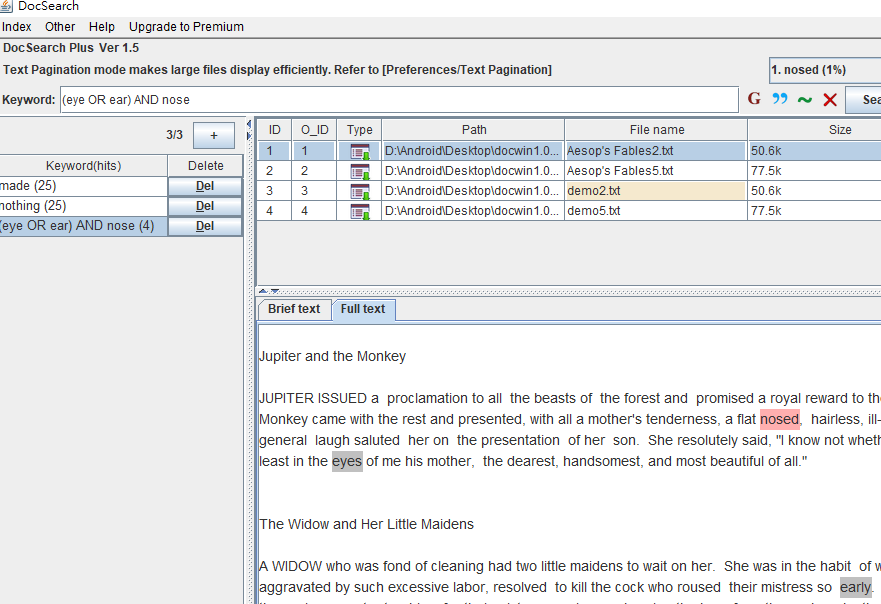
(eye OR ear) AND nose
documents contain nose, and either eye or ear, or both
Phrase search
Phrase
search is a search technique that retrieves documents containing an
exact sequence of words or terms. It ensures that the terms appear
together and in the specified order within the document. This precision
helps users find highly relevant results by capturing specific phrases,
enhancing search accuracy.
Proximity search
Proximity
search is a technique to retrieve documents where specified terms
appear close to each other within a defined distance. It helps find
relevant content based on the proximity of keywords, enabling more
precise search results by ensuring that terms are nearby, improving
contextual accuracy.
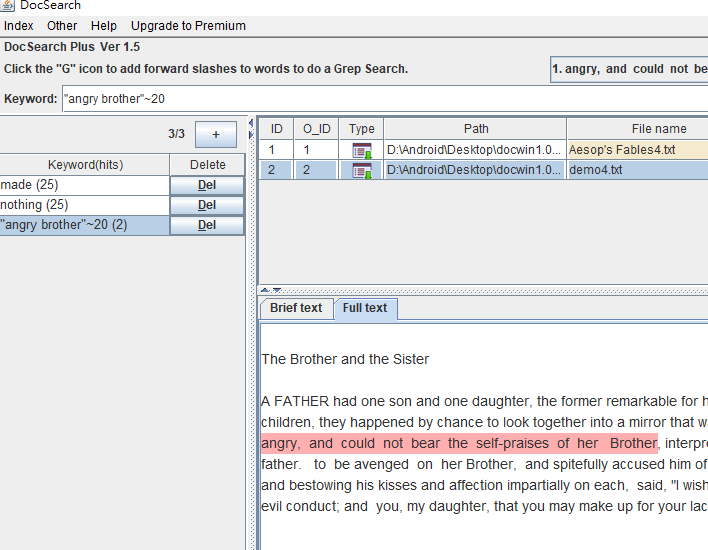
For example, to search for documents containing "angry" and "brother" within 20 words of each other, type in: "angry brother"~20
Regular Expression search
(Currently only available in Android version, Windows will be developed based on user needs)
Regular
Expression search is a powerful text search technique. It allows users
to find text patterns using complex search patterns defined by regular
expressions, enabling flexible and precise matching within documents.
Please
note that when using regular expression search in index data, there
will be some restrictions due to performance considerations, which are detailed in the software.
"Grep" search
"grep"
is a text search tool closely associated with Linux. It allows you to
search for specific text patterns or regular expressions within
files.
Advantages:
- Flexibility: "grep" is highly flexible and can handle complex text patterns using regular expressions.
Disadvantages:
- Performance: It can be slow when searching through large files.
-
Not Index-Based: "grep" searches are not indexed-based, so it may need
to scan the entire file , leading to slower performance for large data.
(In this case, index-based search tools make searches significantly
faster than "grep".)
"Why is "DocSearch+" an indexed-based search tool but still utilizes "grep" as one of its search methods?
Reason 1: Flexibility in Substring Search
"Grep"
provides an indispensable feature that complements our indexed-based
search app. It allows users to efficiently search for substrings within
text, a task that is often challenging for indexed-based systems. For
example, when searching for 'bcd' within 'abcde,' 'grep' is the only
tool that can accomplish this effectively.
Reason 2: Support for Regular Expressions
Another reason for integrating 'grep' is its robust support for regular expressions.
Regular
expressions enable users to efficiently locate intricate and specific
text patterns, whereas the regular expressions of DocSearch+ have
limitations as mentioned above.
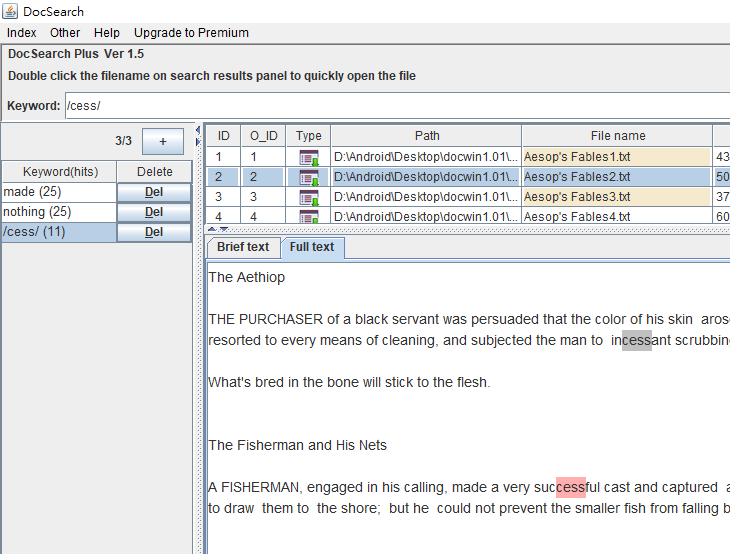
When you press the “grep” icon, you add “/” to words to perform a “grep search”.
The “index search method” can only search at the beginning of a word.
The
“grep search” is able to search for keywords no matter where they
appear in the document… beginning of a word, end of a word, middle of a
word, etc.
But the "grep" does not create an
index so it requires going through the entire document each time.
Therefore, it is inefficient in searching large amount of data.
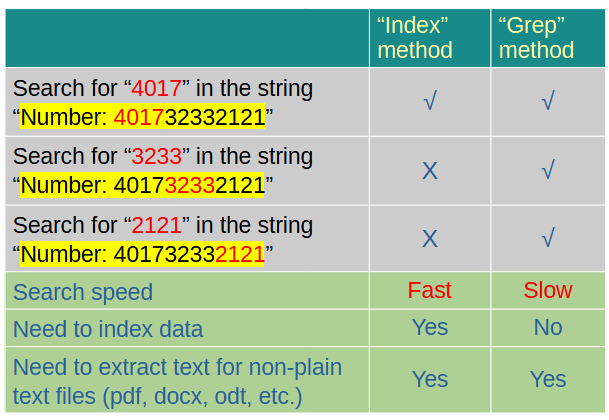
The table below shows a comparison between two kinds of search methods.
Full-text search, the fastest and most accurate search for the content of windows filesDocSearch+ is a full-text search tool designed to search filenames and file contents on your windows/android system.
This tool allows you to search files in full-text search mode on
Android devices and Windows desktop systems. It is simple and easy to
use, providing relevant information in the search results.
It is particularly useful for searching for keywords in file contents and file names.
When
you first use this tool, you will be prompted to create indexes for
your device. These indexes enable DocSearch+ to quickly search files
content/filename based on keywords.
To conduct a full text
search, enter one or more keywords in the text field at the top left
and click the search icon on the right side of the field. The search
results will be displayed in the result pane.
Features:
- Supports full-text searching of both filenames and file contents on Android and Windows.
- Allows immediate viewing of file contents within the app, eliminating the need for external tools.
-
After completing a search, you can view, open, copy, move, delete,
sort, filter, and share all the resulting files. You can also access
the files using a file explorer.(Not all features are available on the
Windows version)
- Easily and quickly scroll to the matched words in full-text mode.
- In brief-text mode, you can simultaneously view all brief texts containing the keywords.
- Supports various file formats, including:
Plain text - File extensions are txt, text, java, php, etc.,(file extensions defined in the app settings)
Microsoft Office - File extensions are docx, xlsx, pptx (Windows version also support "doc", the old "Office Word" format)
Adobe Portable Document Format (File extension is pdf)
Electronic Publication, ebook (File extension is epub)
LibreOffice Writer, OpenOffice Writer (File extension is odt)
HTML (File extensions are html, htm)
- Supports logical search, phase search, proximity search, regexp search(Android version only), and "grep" search.
- Manages multi-page/multi-item searches.
- You can search for special characters, for example, "#abc", "2366–1245", "tom@mail.com".
-
Supports almost all languages, including but not limited to English,
Chinese, Japanese, Korean, Russian, German, French, Vietnamese, Tamil,
Czech, Tibetan, etc.
Additionally, there are premium features available:
- Sort and filter search results. (Free/Premium features in Windows version; Standard/Premium features in Android version)
-
Unlimited access to view all file content within the search results.
(Premium features in Windows version; Premium features in Android
version)
- Search for keywords within the results. (Free/Premium features in Windows version; Premium features in Android version)
The
free version of Destop Windows version includes all the features of the
premium version, except for the limitation of viewing the file content.
Query example
Boolean Search
|
eye AND ear
| documents contain both eye and ear |
eye OR ear
| documents contain either eye, or ear, or both |
eye NOT ear
| documents contain eye, but not ear |
| (eye OR ear) AND nose | documents contain nose, and either eye or ear, or both |
| eye ear | by
default equivalent to the query [eye OR ear], you can use AND instead
by changing it from [menu->Preferences->search ->AND/OR
operator] |
Note:
AND = & ; Or = | ; NOT = ~ | "eye AND ear" = "eye & ear"
"eye OR ear" = "eye | ear"
"eye NOT ear" = "eye ~ ear" |
| Phrase Search |
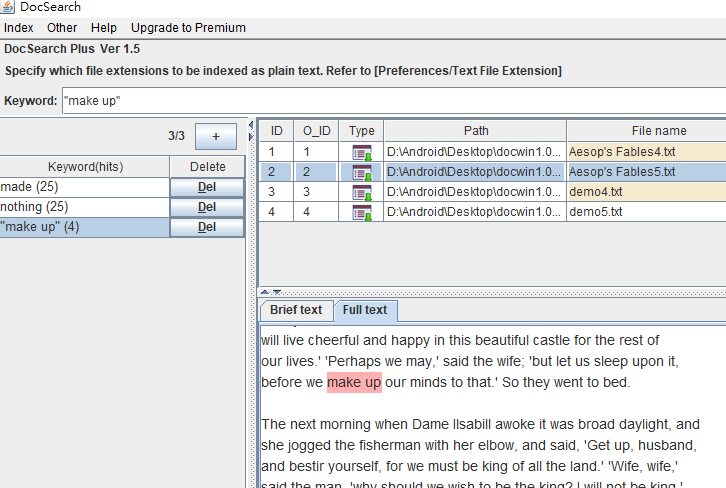
| "make up" | the words make and up, in that particular order
e.g.- I make up my mind .....(match)
- I make it up to you........(no match)
- ....up, make it ..... .........(no match)
|
| Proximity Search |
| "make up"~N | You
can find words that are within a specific distance away from each
other. To do that, put a tilde ('~') at the end of a phrase, followed
by a distance value. For example, to search for documents
containing make and up within 5 words of each other, type
in: "make up"~5 another example: search for "make up"~3 - I make up my mind. ...(match)
- Can you make it up the wall? ....(match)
- if you want to make a phone call, please hang up and try again ...(no match)
|
| Grep Search (1) |
/abcd/
| Use the grep search method to search for "abcd".
You can only search at the beginning of a word in the indexed data.
But the “grep search” is able to search for keywords no matter where they appear in the document… beginning of a word, end of a word, middle of a word, etc.
for example:
When using "index search":
search for “one” in "onetwothree" => success
search for “two” in "onetwothree" => fail
search for “three” in "onetwothree" => fail
When using "grep search":
search for “one” in "onetwothree" => success
search for “two” in "onetwothree" => success
search for “three” in "onetwothree" => success
But
the "grep" does not use an index so it requires going through the
entire document each time. Therefore, it is inefficient in searching
large amount of data.
|
| Grep Search (2) |
|
/123.45/
/123\.45/
| "Grep Search" supports regular expression. Some characters have special meanings in regular expression, such as dot (.) asterisk (*) plus (+) etc.
For example, in regular expressions, the dot is a special character used to match any one character.
Therefore,
when searching for "123.45", you have to escape the dot (.) with a
backslash (\) and type "123\.45" in the search field.
The results are as follows:
Type "123.45", you may get the results: "123.45", "123a45", "123b45", "123145", "123x45" ...
Type "123\.45", you can accurately find the result you want "123.45"
|